


Set and Remove Formatting

Set and Remove Formatting adjusts text appearance in DOORS Next module artifacts. Restore default formatting or apply configured values for properties such as fonts, colours and alignment, including selected table text properties.
About this offering
Normalise formatting after import or before publicationWorkflow at a glanceSupported changesTechnical prerequisites and limitsA practical questionCommercial scope and next step
Normalise formatting after import or before publication
Set and Remove Formatting changes presentation properties in DOORS Next module artifacts. Authors can restore default formatting or apply a configured style to imported fonts, colours, headings, paragraphs and tables.
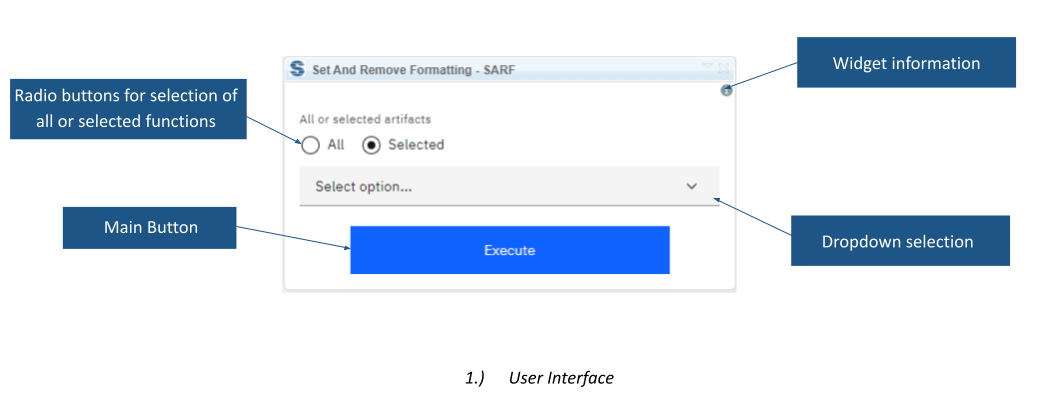
Default mode restores supported properties to DOORS Next defaults. Advanced mode reads values from a dedicated configuration artifact. Users can apply all or selected operations.
Workflow at a glance
- Prepare the presentation.Choose defaults or configure the advanced formatting artifact.
- Select content and operations.Open the module/view, select artifacts and choose the functions.
- Apply and inspect.Review representative text, lists, headings and tables.
Supported changes
Functions include font family/size, text and background colours, alignment, table properties, list handling, protected-space replacement and empty-paragraph removal. These change content presentation. A Publishing Engine template can separately affect exported appearance.
Technical prerequisites and limits
Module context is required. Advanced mode needs a Widget Format Setting artifact with the required attributes in the same folder as the affected modules. Types and values must match the documented configuration. The pinned mini dashboard supports a documented maximum of 200 selected artifacts. Confirm supported releases and installation.
A practical question
Can module groups use different formatting?
The documentation permits multiple configuration artifacts for modules in different folders. Confirm the folder/configuration arrangement before changes.
Commercial scope and next step
Agree eligibility, configuration work, support and charges. Provide a sample import, desired presentation, folder structure and properties to change or preserve.
Related options to compare
- Image Gallery — Manage supporting content. Preview images from selected DOORS Next folders in the mini dashboard and identify their artifacts.
- Export Files — Manage supporting content. Export files from selected DOORS Next artifact types and folders.
These are editorial suggestions for related scenarios; they do not imply a shared licence or a product integration.
Source: Official documentation.
